7 Best Raid Hard Drive Enclosure for Home Backup
The CENMATE 4-Bay RAID Hard Drive Enclosure is the top pick for most buyers. It earns the best raid hard drive enclosure spot because four drive bays give you more room to build usable storage, redundancy, or both in one chassis. That flexibility suits home offices, photographers, and small teams that need more capacity than a single external drive can provide. It is a practical starting point for shoppers who want a dedicated multi-drive storage box instead of a basic USB enclosure.
This guide is for anyone comparing multi-bay storage hardware for backups, media libraries, or shared files. Focus first on supported drive capacity and RAID modes, then check connection type, cooling, noise, and physical size. Those details affect storage space, transfer speed, and placement. The seven picks below are ranked with clear reasons and honest drawbacks for each, so you can match the enclosure to your budget and workload.
Quick Comparison
| # | Product | Best For | Price | |
|---|---|---|---|---|
| 1 | CENMATE 4-Bay RAID Hard Drive Enclosure | Best for Compact RAID Storage | ~$130 | View → |
| 2 | ORICO 5-Bay RAID Hard Drive Enclosure | Best for Expanding Media Libraries | ~$240 | View → |
| 3 | CENMATE 8-Bay Hard Drive Enclosure | Best for Large Backup Archives | ~$190 | View → |
| 4 | CENMATE 2-Bay RAID Hard Drive Enclosure | Best for Home RAID Setups | ~$50 | View → |
| 5 | CENMATE 2-Bay Hard Drive Enclosure | Best for Simple Drive Expansion | ~$58 | View → |
| 6 | CENMATE 3-Bay SATA HDD/SSD Enclosure | Best for Mixed SATA Drives | ~$75 | View → |
| 7 | SABRENT DS-SC4B 4-Bay Hard Drive Enclosure | Best for Four-Drive Workstations | ~$207 | View → |
7 Top RAID Hard Drive Enclosures
These RAID enclosures are ranked by features, compatibility, and value, counting down to the top pick.
7. SABRENT DS-SC4B 4-Bay Hard Drive Enclosure
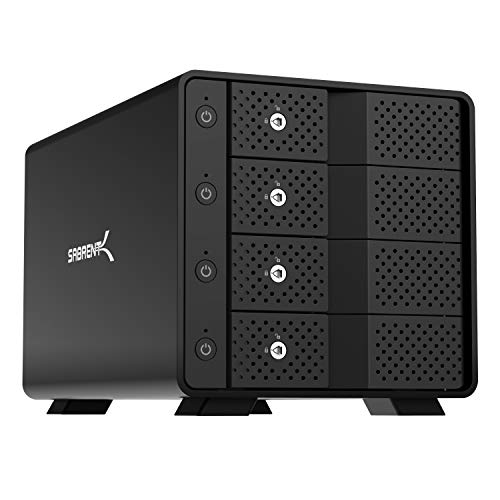
Best for: Multi-drive desktop storage users
The SABRENT DS-SC4B is a four-bay external enclosure for 3.5-inch SATA hard drives or SSDs. It connects to a computer through one USB-C 10Gbps port and supports USB 3.0 and 2.0 systems. Each bay has a dedicated ASMedia ASM1351 controller, giving the four drives separate connections within the enclosure. Total capacity can reach 80TB with four 20TB drives, though all bays ship empty. At around $207, it targets users who need several disks in one desktop unit.
Its tray-less design lets you insert drives without tools, while individual power switches and activity LEDs make each bay easy to manage. The aluminum-and-metal housing includes a 92mm cooling fan for extended operation, plus a Kensington slot and locking key for added physical security. An external 100-240V adapter supplies power. The enclosure works with Windows, macOS, and Linux, but it uses JBOD-style direct access rather than hardware RAID. That means each disk remains separate. The warranty lasts one year, or two years after registration.
Pros
- Four independent drive bays support up to four 3.5-inch SATA disks.
- USB-C 10Gbps provides a single, fast desktop connection.
- Tool-free access, bay switches, LEDs, and active cooling simplify regular use.
Cons
- It does not provide hardware RAID, redundancy, or one combined storage volume.
- The bays are empty, so compatible drives must be purchased separately.
6. CENMATE 3-Bay SATA HDD/SSD Enclosure

Best for: Multi-drive desktop storage users
The CENMATE enclosure holds three SATA hard drives or SSDs, supporting both 2.5-inch and 3.5-inch models. Each bay can handle up to 20TB, giving this desktop storage unit room for large photo, video, or backup libraries. Its aluminum-alloy body includes a 2.7-inch cooling fan to help manage heat during longer transfers.
Tool-free trays make drive installation and removal simple, while hot swapping lets you change compatible drives without shutting down the enclosure. USB 3.0 provides up to 5Gbps, and the included USB A/C cables support newer and older computer ports. A USB host connection also allows daisy chaining up to three enclosures, with the listed setup reaching 180TB. At around $75, it offers useful capacity for home offices and small businesses. The system works with Windows 7 or newer, Mac 9.1 or newer, and Linux.
Pros
- Three bays support 2.5-inch and 3.5-inch SATA drives.
- Tool-free trays and hot swapping simplify drive changes.
- Aluminum construction and a built-in fan help control heat.
Cons
- Fan noise reaches about 40 to 50 decibels, which may bother quiet-room users.
- This is DAS storage only, with no RAID or NAS functions.
5. CENMATE 2-Bay Hard Drive Enclosure

Best for: Desktop drive expansion users
The CENMATE is a two-bay external enclosure for 2.5-inch and 3.5-inch SATA hard drives or SSDs. Its aluminum-alloy body includes a 2-inch cooling fan, while tool-free trays let you install or remove drives without a screwdriver. It connects through USB 3.0 and includes both USB-A and USB-C cables. At around $58, it offers a practical way to reuse spare internal drives or add storage to a computer.
Each bay supports drives up to 20TB, for a possible 40TB total before expansion. USB 3.0 supports transfer speeds up to 5Gbps, although real-world performance depends on the drives and host computer. The enclosure also supports hot swapping, so compatible drives can be changed without shutting down the unit. A USB host port allows daisy chaining up to three devices, with claimed expansion up to 120TB. It works with Windows 7 and newer, Mac 9.1 and newer, and Linux. This is direct-attached storage, not a RAID or NAS system.
Pros
- Holds two 2.5-inch or 3.5-inch SATA drives at once.
- Tool-free trays make drive changes quick and simple.
- USB-A and USB-C connectivity suits newer and older computers.
Cons
- The cooling fan produces about 40 to 50 decibels, which may bother noise-sensitive users.
- It has no RAID or NAS functions, so there is no built-in redundancy or network sharing.
4. CENMATE 2-Bay RAID Hard Drive Enclosure

Best for: Home users combining two SATA drives
The CENMATE Aluminum 2 Bay RAID Enclosure holds two 2.5-inch or 3.5-inch SATA HDDs or SSDs. Each bay supports drives up to 20TB, giving this unit room for large media libraries, backups, and work files. Its tool-free design makes drive installation simpler, while the aluminum-alloy shell helps manage heat. A built-in 2-inch fan adds active cooling, though it produces about 40–50 decibels of noise.
Four storage modes are available: RAID 0, RAID 1, Normal, and JBOD. RAID 0 can improve speed but raises the risk of losing all data if one drive fails. RAID 1 mirrors data across both disks, while Normal and JBOD offer less complex setups. The enclosure uses USB 3.0 with speeds up to 5Gbps and includes both USB-A and USB-C cables. It works with Windows 7 and newer, Mac 9.1 and newer, and Linux. After changing a RAID setup, the reset button must be held for five seconds. Mac users should also know that RAID software is not included.
Pros
- Supports two 2.5-inch or 3.5-inch SATA drives, up to 20TB per bay.
- Offers RAID 0, RAID 1, Normal, and JBOD modes.
- Includes USB-A and USB-C cables for broader computer compatibility.
Cons
- The 40–50 dB fan may bother users who need a quiet workspace.
- RAID changes can cause data loss, and Mac users do not get RAID software.
3. CENMATE 8-Bay Hard Drive Enclosure

Best for: Desktop users managing multiple SATA drives
This CENMATE enclosure holds up to eight 2.5-inch or 3.5-inch SATA HDDs and SSDs in one aluminum-alloy chassis. It connects to a computer through USB 3.0, with both USB-A and USB-C cable support. The stated maximum is 20TB per bay, or 160TB across eight drives. It is a DAS unit, not a RAID or NAS system, so each disk remains separately managed by the host computer.
Two built-in 2.9-inch fans help move air around the drives, while the included 12V, 20A adapter supplies power for the full bay count. CENMATE lists transfer speeds up to 5Gbps under UASP, though actual results depend on the drives, computer, and connection. A USB host port allows daisy chaining up to three units, with a claimed total of 480TB. Tool-free, hot-swappable bays make drive changes easier, but users should verify disks one at a time. If one drive is faulty, the enclosure may show only one disk, making the problem harder to identify.
Pros
- Eight bays accept both 2.5-inch and 3.5-inch SATA drives.
- USB-A and USB-C connectivity supports newer and older computers.
- Tool-free, hot-swappable bays reduce setup time for drive changes.
Cons
- The fans produce about 40 to 50 decibels, which may bother noise-sensitive users.
- It provides no RAID or NAS features, and a bad drive can prevent the others from appearing clearly.
2. ORICO 5-Bay RAID Hard Drive Enclosure

Best for: Large desktop backup arrays
This ORICO enclosure holds five 2.5-inch or 3.5-inch SATA drives in one desktop unit. Its hardware controller supports RAID 0, 1, 3, 5, and 10, plus JBOD, Clone, and Clear modes. Physical switches handle configuration, so you do not need separate RAID software. At around $240, it targets users who need more storage than a typical external drive provides.
The supplied specifications list up to 22TB per drive, or 110TB across five bays. The product name claims 130TB, so buyers should confirm the current capacity information before ordering. A 150W internal power supply supports multiple mechanical drives without a separate power brick. USB 3.0 Type-A provides claimed transfer rates up to 230MB/s, with support for Windows, macOS, and Linux. An aluminum-alloy case, 80mm fan, and honeycomb vents help manage heat during long transfers or extended operation.
Pros
- Eight operating modes cover speed, redundancy, cloning, and independent drives.
- Five bays accept both 2.5-inch and 3.5-inch SATA HDDs or SSDs.
- Built-in 150W power supply keeps the setup less cluttered.
Cons
- USB 3.0 can limit performance compared with USB 3.2 or Thunderbolt storage.
- Capacity details conflict, with the listing naming 130TB but the drive limit totaling 110TB.
1. CENMATE 4-Bay RAID Hard Drive Enclosure

Best for: Multi-drive desktop storage users
The CENMATE is a four-bay direct-attached storage enclosure for 2.5-inch and 3.5-inch SATA hard drives or SSDs. It supports up to 20TB per bay, with an 80TB maximum capacity. The aluminum-alloy body includes two-inch cooling fans, while USB-A, USB-C 3.0, and eSATA connections provide flexible computer access. This is a DAS unit, not a network-attached storage device, so it connects directly to a computer rather than serving files over a network.
Eight storage modes cover RAID 0, 1, 3, 5, and 10, plus Clone, Large, and Normal. Changing modes requires disconnecting power, moving a switch with a screwdriver, holding the reset button, and waiting about 10 seconds after startup. Reconfiguring RAID can erase data, and macOS does not get included RAID software. The JMS567 and JMB393 chips support transfers up to 5Gbps. Windows 7 and newer, Mac 9.1 and newer, and Linux are listed as compatible. At around $130, it offers substantial drive capacity, but the fans produce about 40 to 50 decibels of noise.
Pros
- Holds four SATA drives, with up to 80TB total capacity.
- Supports eight modes, including RAID 1, RAID 5, RAID 10, and Clone.
- Includes USB-A, USB-C 3.0, eSATA, and a 12V power adapter.
Cons
- Fan noise around 40 to 50 decibels may bother users in quiet rooms.
- RAID changes require manual steps and can cause data loss.
Buying Guide
The most important factor is RAID compatibility, because the enclosure must support your planned array level and drive mix. A two-bay unit with only RAID 0 and 1 cannot create RAID 5.
- Bay count: Choose two bays for mirrored backup, four bays for RAID 5, or six bays for larger media libraries and future expansion. Confirm that each bay accepts your preferred 2.5-inch SSD or 3.5-inch hard drive.
- RAID modes: Check for RAID 0, 1, 5, 6, and 10 if needed. RAID 5 requires at least three drives, while RAID 6 needs four. Hardware RAID usually works independently from the operating system.
- Connection speed: USB 3.2 Gen 2 provides up to 10Gbps, while USB4 and Thunderbolt models can reach 40Gbps. Match the enclosure, computer port, and cable to avoid slower transfers.
- Drive capacity: Confirm the published limit per bay exceeds your planned drive size. A four-bay enclosure should support at least 16TB drives if you want room for newer disks.
- Cooling and recovery: Look for an adjustable fan, drive-status lights, hot-swap trays, and a two-year warranty. A replacement-drive rebuild feature can reduce downtime after a disk failure.
If you cannot have everything, prioritize RAID support and drive compatibility over extra ports or a lower price.
Frequently Asked Questions
How do RAID hard drive enclosures work?
RAID hard drive enclosures combine two or more drives and manage them as one storage system, using modes such as RAID 0, 1, 5, or 10. RAID 1 mirrors data for redundancy, while RAID 0 improves speed but offers no drive-failure protection. The enclosure needs compatible drives and a host connection.
What should you look for in a RAID drive enclosure?
Look for the RAID levels, drive count, interface, cooling, and recovery controls that match your storage needs. A four-bay model may support RAID 5, while a two-bay unit commonly supports RAID 0 or 1. Check drive size limits and USB or Thunderbolt compatibility before buying.
Can a RAID enclosure protect data from drive failure?
Yes, a RAID enclosure can protect data from some drive failures, but only when its selected RAID level includes redundancy. RAID 1 can keep a copy on a second disk, and RAID 5 can usually tolerate one failed drive. RAID is not a backup, since deletion, theft, or malware can affect every disk.
Are RAID enclosures faster than external hard drives?
RAID enclosures can be faster than one external hard drive, but the result depends on the RAID mode, drives, and connection. RAID 0 combines disks for higher throughput, while USB 5Gbps can limit performance. A mirrored RAID 1 setup may offer similar speed to one drive, with added failure protection.
Conclusion
The CENMATE 4-Bay RAID Hard Drive Enclosure is the top pick for users who need several drive bays, RAID flexibility, and one desktop storage unit. If your priority is a lower purchase price or a smaller footprint, choose a two-bay enclosure instead, since it takes up less desk space and may suit a modest backup setup better. Before buying, double-check the drive size, compatibility with your operating system and RAID goals, the number of drives you plan to install, and the current price. Also confirm the included cables, power requirements, warranty terms, and connection type. A careful match can prevent extra adapters, unused bays, or an upgrade that costs more than planned.